 Findbar
Set up Findbar on your Wix site
Five steps, about five minutes. You need the Findbar app installed and your site open in the Wix editor.
Most common mistake: many templates already have a search box in the header. That's Wix's built-in search, not Findbar. If you search with it, you're testing Wix's search. Step 1 removes it.
- Remove the template's search box Any search box that was in your header before you installed Findbar is Wix's own. In the editor, click it and press Delete. Visitors would otherwise see two search boxes.
- Put the Findbar bar in your header
When you installed Findbar, we added a search bar to your homepage. Drag it up into the header so it shows on every page. Can't find it? Click Add (top left), then Elements, and open Installed Apps (called App Widgets in some editors). Under Search Bar & Product Search, drag the search box into the header. Don't use the Search Results card: that one belongs on the results page, which Findbar already created. To line it up with your logo and menu, select them together and choose Align → Middle.
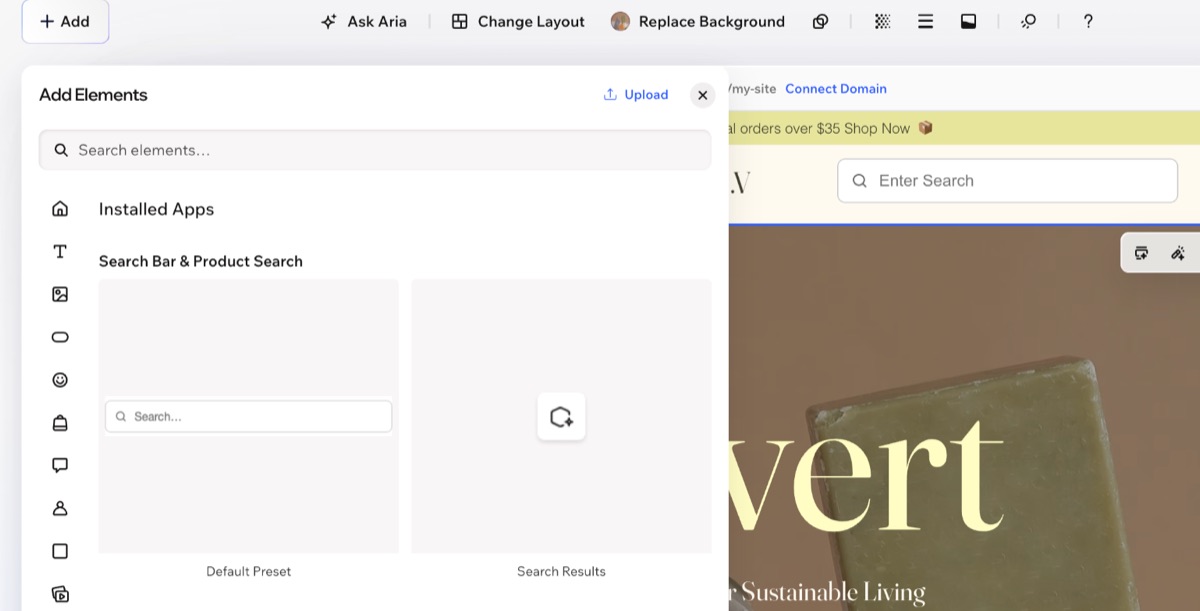
Add → Elements → Installed Apps. Drag the search box, not Search Results. - Publish your site
Click Publish. Findbar can only index a published site, so search shows no results in Preview or before your first publish. After publishing, Findbar indexes your products, pages, blog posts and CMS items by itself. This usually takes a few minutes. You can watch it in your Wix dashboard under Apps → Findbar.
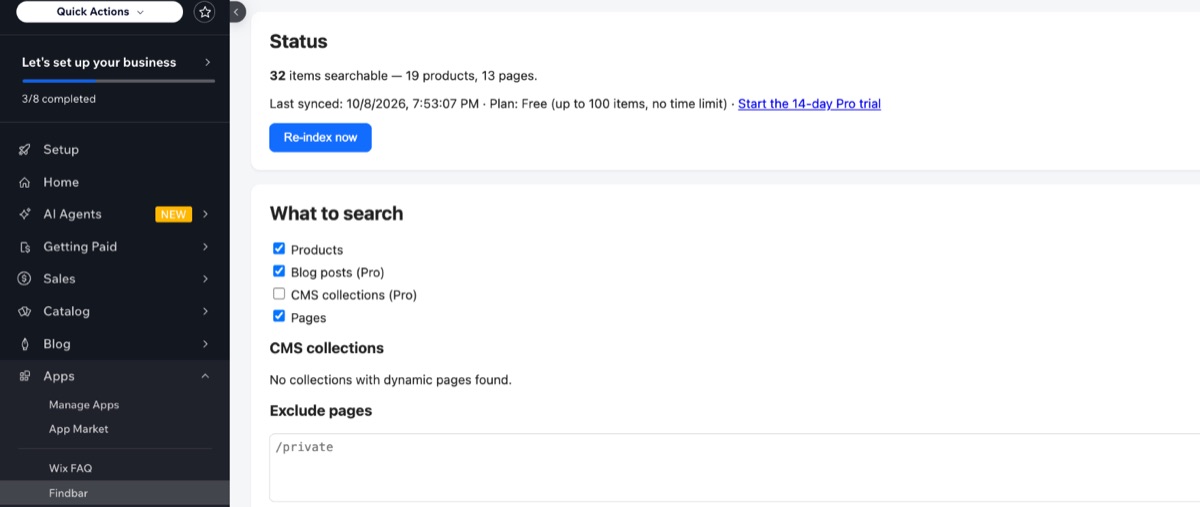
Your Wix dashboard → Apps → Findbar shows how many items are searchable. - Test on the live site
Open your published site (not Preview), type the name of a product or page you know exists and wait a moment. Suggestions appear under the bar as you type. Press Enter to open the full results page.
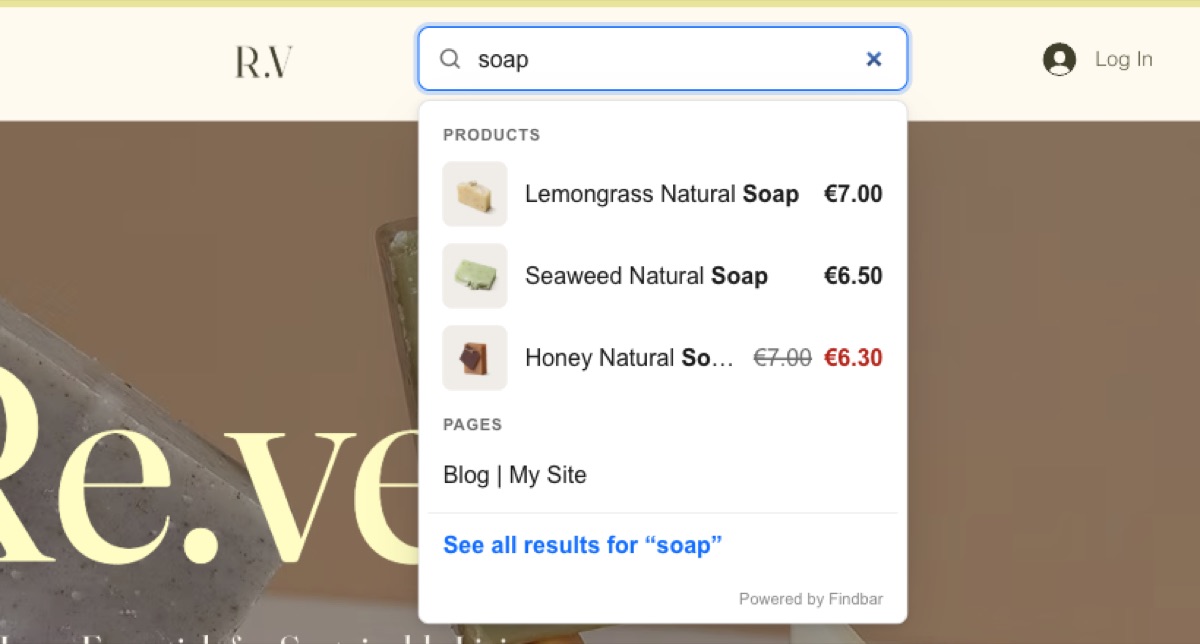
What visitors see: products with images and prices, then pages and posts. - Adjust the bar (optional)
In the editor, select the bar and click Settings (the gear icon above it). You can change the text in the empty box, choose what visitors can find (products, blog posts, CMS items, pages), and limit a bar to one part of your site, such as your shop or blog (Pro). Colours, corner radius and which content gets indexed are in your Wix dashboard under Apps → Findbar.
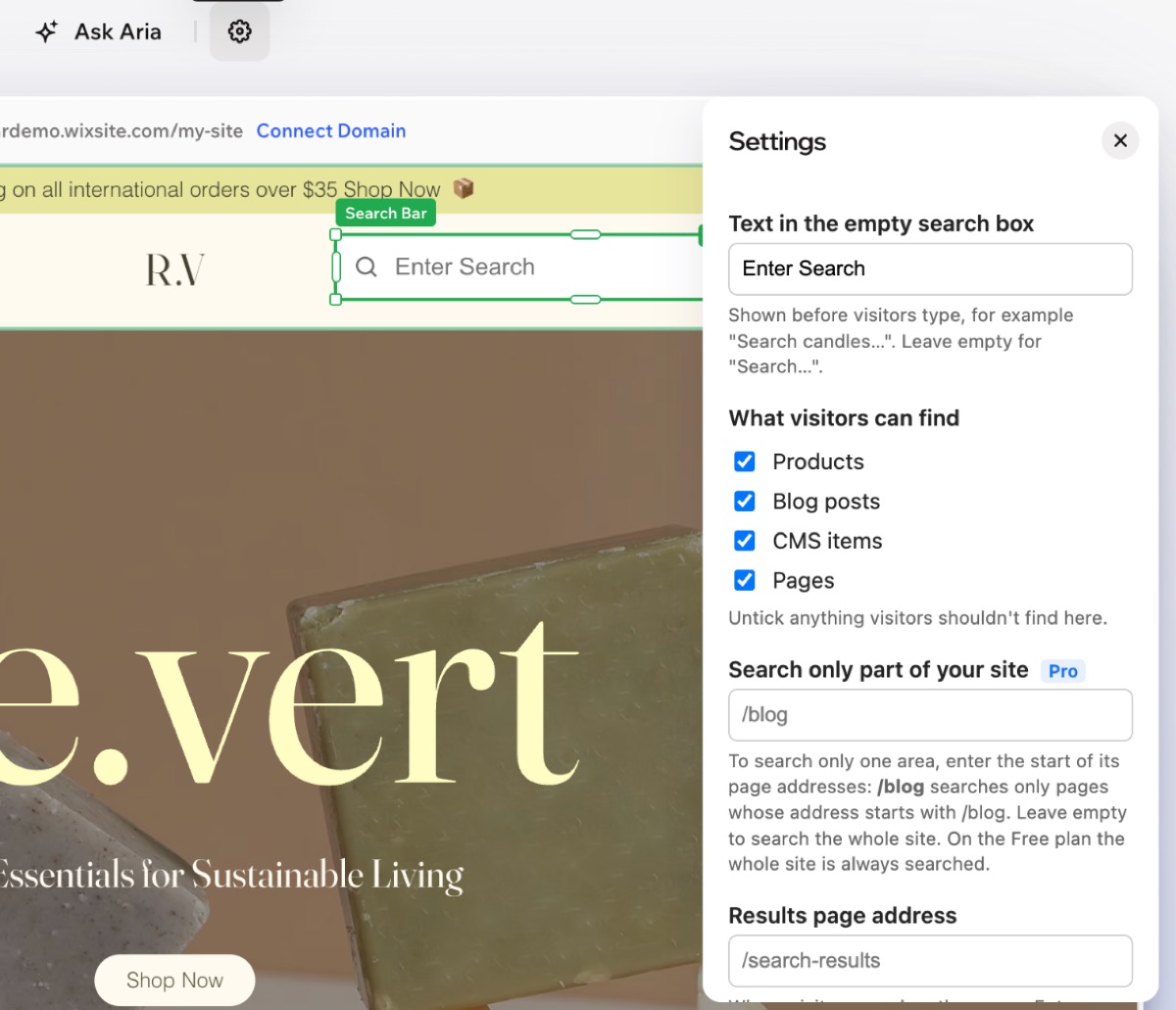
Each bar has its own settings: placeholder text, what it finds and which part of the site it searches.
Not working?
| What you see | What to do |
|---|---|
| No results at all | Check you're on the published site, not Preview. If you've never published, publish now and wait a few minutes. The dashboard (Apps → Findbar) shows how many items are searchable. |
| The results page has a "Sort by" menu | You're using Wix's built-in search. Go back to step 1. |
| Two search boxes | Delete the one that isn't Findbar (step 1). |
| A new product or page is missing | Changes usually appear within minutes, and a nightly check catches the rest. To update straight away, click Re-index now in the dashboard. |
| Only some products show up | The free plan searches up to 100 items. The dashboard tells you if your site has more. The 14-day Pro trial covers your whole site. |
| Blog posts or CMS items don't show up | Blog and CMS search are part of Pro. Check they're ticked under "What to search" in the dashboard. |
| The bar sits higher or lower than your logo on the live site | Select the bar, logo and menu together in the editor and choose Align → Middle, then publish again. |
Plans
Free, with no time limit: up to 100 items, products and pages, with a small "Powered by Findbar" link. Pro: your whole site, blog posts and CMS items, search insights and bars that search only one section. Try Pro free for 14 days from your Findbar dashboard. Wix handles billing, and you can cancel any time.
Still stuck? Email [email protected] with your site address and what you see. Want to see a finished setup first? Try our demo store.